
Compass Associate Portal Help CenterFind the correct route for login, paystubs, W-2, payroll and employee support
Use practical, role-aware guidance to log in, register, recover access, download payroll documents, update employee information and contact the team that can resolve the issue.
🔒 Official Compass Group Portals — Bookmark These
Choose the result you need—not just a portal name
Select one task to see the safest starting route, what to prepare and when to stop self-service. The selector runs in your browser and does not collect employee information.
Prepare:
Open official starting pointNever enter a password, SSN, verification code, bank information, paystub or tax form into this independent task finder.
How This Compass Associate Guide Is Researched
This independent page combines official portal routes, Compass USA support information, government tax guidance, practical browser checks and clearly labeled editorial explanations.
Official links first
Portal, registration and support links are labeled as external official resources so readers can distinguish them from this independent website.
Claims checked
We avoid presenting unverified lockout periods, payroll timing, account-retention windows or support wait times as universal Compass rules.
Human review
Major factual, security and usability changes are reviewed before the page date is updated. This page was last reviewed on July 29, 2026.
Understand CAP, ESS, AAIMS, SSO, PeopleHub and OMS
These names describe different parts of the Compass employee-system journey. The available route depends on your role, account type and workplace setup.
| System name | What it usually does | Who may see it | Important caution |
|---|---|---|---|
| CAP | Common name for the Compass Associate Portal dashboard. | Associates with an activated employee account. | Use the Login ID assigned to your record; do not guess the format. |
| ESS Mobility | Mobile-browser employee self-service route. | Associates whose account is enabled for ESS. | It is a web route; do not install an unrelated app merely because it contains “Compass”. |
| AAIMS | Application Access & Identity Management Service used for registration and account management. | Users completing an assigned identity or access step. | Identity details must match the employee record. |
| CompassManager SSO | Single-sign-on page that can appear during an expected redirect. | Associates or managers with an assigned CompassManager route. | Continue only when the redirect began from an official route and the domain spelling is correct. |
| PeopleHub | Can contain profile, pay, direct-deposit, tax and employee-information functions. | Accounts where the module is assigned. | Menu names and permissions can vary. |
| OMS or manager tools | Operational or people-management tools assigned to authorised roles. | Managers or other authorised users. | Do not use another employee’s account or assume manager access includes every protected record. |
Choose the Exact Compass Associate Task Before You Log In
This page should not only send users to a portal. It should help them understand the correct route, what information they need, when a portal problem is a browser issue, and when HR is the only safe next step.
Start with ESS Mobility or CAP using the Login ID assigned to your employee record. Use PeopleHub for pay, W-2, direct deposit, profile, and tax-form tasks after login.
Use the registration route only after HR has activated your record. If identity details fail repeatedly, stop retrying and verify the Personnel Number and HR record.
Use separated employee recovery or personal email recovery for W-2 and historical pay documents. Do not rely on an old work email after leaving.
Practical rule: portal issue or HR issue?
If the page is blank, slow, or looping, treat it as a browser/session issue first. If your identity is not found, W-2 is wrong, payroll is missing, account is locked, or your personal email is outdated, treat it as an HR verification issue and prepare your Personnel Number before calling.
| User goal | Best route | Prepare before starting | Stop and contact HR when |
|---|---|---|---|
| Log in today | ESS Mobility / CAP login | Personnel Number, password, trusted browser | Several attempts fail or account locks |
| Register as new hire | New Hire Registration | Personnel Number or Clocking ID supplied by your workplace, plus access to the contact method accepted by the official system | The official page cannot locate or verify your employment record |
| Download paystub | PeopleHub / Pay / Paystubs | Pay period date and PDF viewer | Hours, rate, or pay amount looks wrong |
| Download W-2 | Tax Forms, Payroll, Pay, or PeopleHub | The correct tax year and secure PDF access | The form remains missing, or name, SSN, wages or withholding appears incorrect |
| Reset password | Login Assistance / Forgot Password | Your assigned Login ID and access to the registered recovery method | Recovery fails or the contact method on file is inaccessible |
| Change direct deposit | Assigned payroll or direct-deposit area | Accurate bank details and a secure device | A payment is rejected, missing, or sent to an unexpected account |
| Former employee documents | Official recovery route or One HR | Tax year, former location, employment dates and Personnel Number if available | The portal cannot verify the former employment record |
Use the Correct One HR Option for the Problem
Compass USA publishes one central number, but the menu option matters. Choosing the correct team reduces transfers and helps you prepare the right non-secret information.
| Menu option | Use it for | Prepare before calling | Do not use it for |
|---|---|---|---|
| Option 1 | Medical, dental, vision, life or disability insurance; flexible spending accounts; COBRA; life events; retirement planning. | Employee identifier, benefit plan or event, relevant date and safe contact details. | Paystub amounts, W-2 corrections or portal technology faults. |
| Option 2 | MyStaff, associate payment inquiries, tax withholding, pay card, W-2 and garnishment. | Pay period or tax year, work location, employee identifier and the exact discrepancy. | General benefits or onboarding identity problems. |
| Option 3 | Recruiting and onboarding, WOTC, I-9/E-Verify and First Advantage background checks. | Application or onboarding reference, work location, start date and the message shown. | Existing payroll or benefits disputes. |
| Option 4 | FMLA, disability leave, intermittent leave, ADA leave and military leave. | Expected leave dates, safe contact information and any assigned case reference. | Payroll calculation or direct-deposit changes. |
| Option 5 | Policies and procedures, progressive counselling, termination, performance management, retaliation, discrimination, harassment and ADA job accommodations. | Dates, location, people involved, prior reports and a safe way to contact you. | Immediate emergencies or criminal danger; use emergency services or the crisis route when appropriate. |
Technology Service Center
1-888-295-7206 for Compass technology-system assistance, computer replacement and POS issues.
Associate Crisis Hotline
1-877-710-6291 for a unit crisis such as fire, hospitalisation, workplace violence, food-safety events or other serious incidents.
SpeakUp Hotline
1-866-654-6626 for a confidential report about conduct that may be improper, unsafe, unethical or illegal.
Employee Diagnostic Guide: Find Your Exact Fix
If you are stuck, do not keep guessing passwords. Find your situation below to see a safer next step, what non-secret information to prepare and when authorized support is necessary.
I Cannot Log In or My Account is Locked
Repeated unsuccessful login attempts may temporarily restrict access. Stop retrying, use the official Login Assistance option, and contact authorized support when recovery cannot verify the account.
Your Next Step:
- For general login failures: Use only the Login ID supplied through onboarding, your manager, One HR or the official recovery process. The identifier can differ by role and system, so do not assume a universal number length or format.
- If you are locked out: Stop attempting to log in. Self-service tools cannot bypass a hard lockout. You must contact on-site HR or call the HR Helpdesk.
Prepare Before Calling:
Have your Personnel Number, work location and other non-secret employment details available. Provide sensitive information only when an authorized Compass representative requests it through an approved verification process.
I Am a New Hire and Registration Fails
If the system says “Identity Not Found,” your data does not match the HR database yet, or you are entering it incorrectly.
Your Next Step:
- Use the Personnel Number or Clocking ID option that matches the identifier supplied by your manager, onboarding team or workplace instructions.
- Enter information exactly as requested by the official registration page and as it appears in your employment record.
- If the official page cannot find the record, ask your manager or onboarding contact whether self-service registration has been activated.
Common Mistake:
Do not retry random details. After repeated failures, stop guessing and verify the employment record with your manager, onboarding contact or One HR.
Paystub or W-2 is Missing
W-2 and paystub availability depends on the document type, tax year, payroll schedule and account status.
Your Next Step:
- For W-2s: Sign in through the official route, look for Tax Forms, Payroll, Pay or PeopleHub, and select the required tax year.
- For paystubs: Look for Pay, Payroll, Pay Statements or Earnings and select the required pay period.
- If a document is missing or incorrect: Do not attempt to file taxes with a wrong W-2. Call HR immediately to request a correction (W-2C).
I Am a Former Employee
Former associates may have different portal-access or document-recovery options after employment ends.
Your Next Step:
- Use the official recovery option shown on the current login page, when available.
- If recovery is unavailable or uses an inaccessible contact method, call One HR for the correct document route.
Prepare Before Trying:
Prepare the requested tax year, former work location, approximate employment dates, Personnel Number if known and current contact details.
What Is the Compass Associate Portal (CAP)?
Compass associates may encounter the terms CAP, ESS, PeopleHub and other workplace systems when accessing pay, tax forms, profile information or assigned employee resources. The exact tools and menu labels available can vary by role, business unit and account.
Which Portal Should You Use?
| Portal | Who Uses It | URL | Login With |
|---|---|---|---|
| CAP | Associates directed to the main portal | compassassociate.com | Assigned Login ID and password |
| ESS | Associates directed to employee self-service | ess.compassassociate.com | Assigned employee credentials |
| OMS or manager tools | Authorized managers or supervisors where assigned | Use the workplace-issued route | Employer-issued credentials |
| PeopleHub | Accounts where the module is enabled | Look for the dashboard tile or menu | Existing authenticated session |
Start With the Route That Matches Your Employment Status
A login that worked during employment may not remain the correct route after separation, rehire or a change of business unit.
Current associate
Use CAP, ESS or the assigned manager route. Keep a personal email and telephone number current for recovery and year-end documents.
Best support: One HR or Technology Service Center, depending on whether the issue is record-related or technical.
New hire or rehire
Register only after the employee record is active. Use the identifier supplied by onboarding; do not assume an old login will automatically attach to the new record.
Best support: Manager, onboarding contact or One HR Option 3.
Former associate
Try the current official recovery path for historical pay and tax documents. When access cannot be restored, call One HR with the tax year, former location and employment dates.
Best support: One HR Option 2 for W-2 and payment questions.
Use Experian Verify for Employment or Income Proof
Compass USA publishes different verification routes for current associates, former associates and third parties.
| Who needs verification? | Official starting route | What to prepare | Important protection |
|---|---|---|---|
| Current associate | Use the Experian Verify link provided on Compass USA’s official associate-resources page. | Assigned Compass sign-in and the type of verification requested. | Do not send payroll files to an unofficial landlord, lender or recruiter link. |
| Former associate | Visit Experian Verify and use Compass employer code 4FBCDD9F. | Identity details required by Experian and former-employment information. | Open Experian from Compass USA’s published instructions when possible. |
| Third-party verifier | Use Experian Verify through the official verification workflow. | Employee authorisation and the permitted request details. | Do not request or retain more information than authorised. |
How to Log In to the Compass Associate Portal
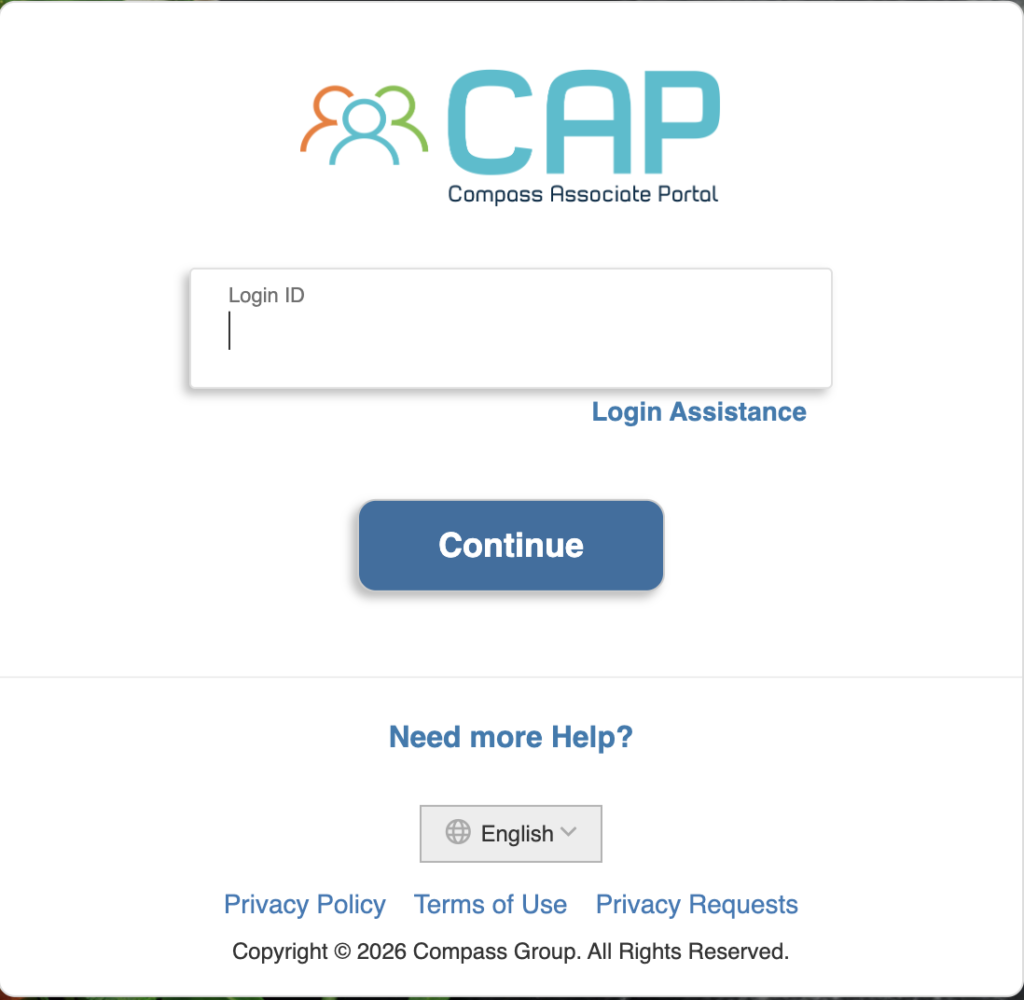
The official sign-in flow asks for an assigned Login ID and password. These steps explain how to recognize the expected route, avoid lookalike websites and decide when official recovery is required.
How to Register for CAP (New Employee Checklist)
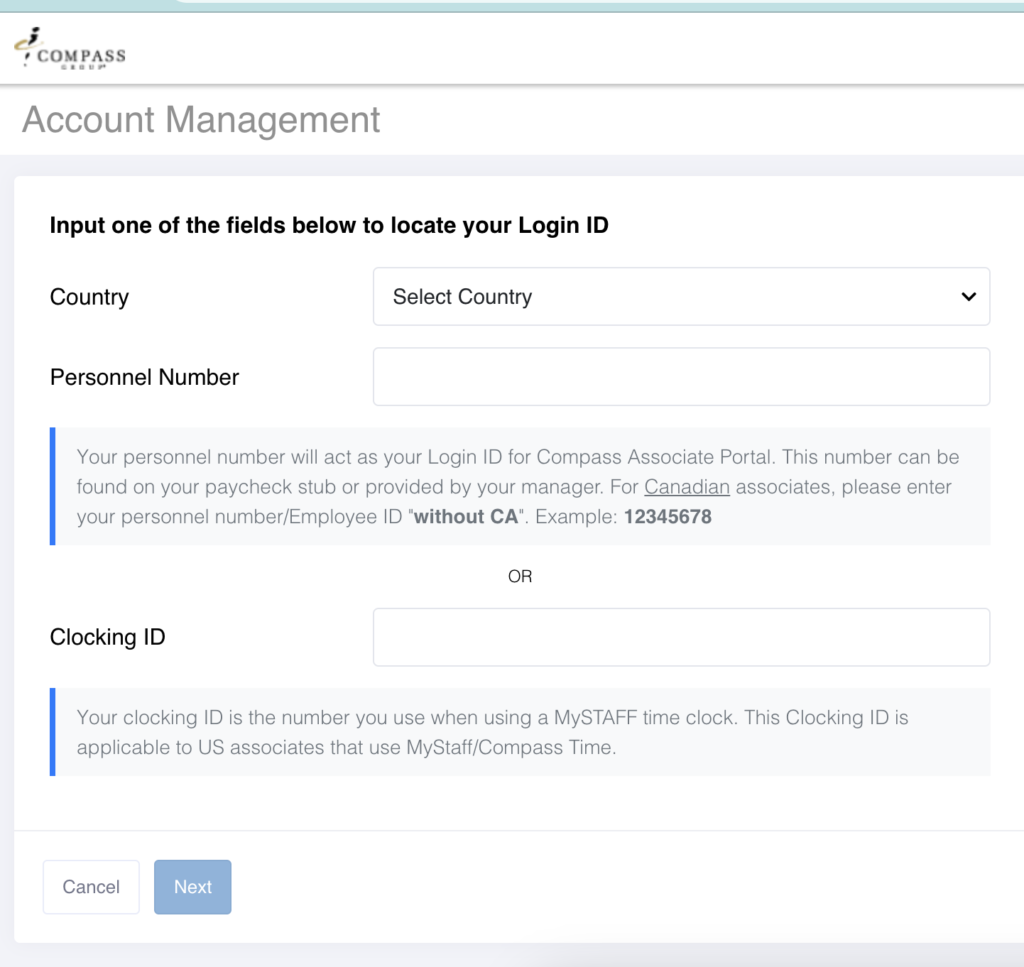
Before starting, have the Personnel Number or Clocking ID supplied by your workplace and access to the contact method accepted by the official system. Complete identity verification only on the official CompassManager.com registration page.
How to View and Download Paystubs
Use the pay or payroll area to locate the statement for a specific pay period. Statement availability and bank posting times vary, so confirm payment using the official pay date and your financial account record.
How to Download Your W-2 from CAP
For 2026 wages, the IRS instructions state that employers generally must furnish employee copies by February 1, 2027, because January 31 falls on a weekend. For other tax years, use the deadline stated in the applicable IRS instructions. Check the official tax-form area for the correct calendar year and review the form before filing.
Managing Your Profile, Benefits & Direct Deposit
Keeping contact information current can help with recovery messages, payroll communication and year-end documents. Use only the profile tools assigned to your account and follow any verification steps shown.
Fast Password Reset When You’re Locked Out
Three reset paths depending on your situation. Use the correct one to avoid wasting time and triggering further lockouts.
🔑 Path A
Use Forgot Password or Login Assistance and follow the recovery method currently displayed by the official system.
📧 Path B
If the official system sends a recovery message, use only the registered contact method you control and verify the destination domain before continuing.
📞 Path C
If official self-service recovery cannot verify you, use the authorized support route: 1-877-311-4747.
Common Compass Portal Problems and Safer Fixes
Use these checks before contacting support. Browser problems may respond to low-risk troubleshooting, while account, identity, payroll and tax-form issues require authorized assistance.
12 Practical Compass Portal, Pay and W-2 Tips
These practical reminders help associates prepare for common account, pay, tax-form and document-recovery situations without presenting unverified internal procedures as guaranteed rules.
Do not treat a posted paystub as a completed bank deposit
A pay statement may appear before, on or after the time a bank displays the related transaction. Use the official pay date and the completed bank transaction—not a portal preview alone—when confirming whether funds are available.
Confirm your first expected pay date during onboarding
First-paycheck timing depends on your start date, payroll cutoff and location’s pay schedule. Ask your manager or payroll contact for the first expected pay date and the pay period it covers.
Personnel Number and Network ID are not interchangeable
Use the Login ID assigned to your account. A Personnel Number, Network ID, Clocking ID and location number can serve different purposes, so do not infer the correct login format only from the number of digits.
Use the employer name printed on the W-2
The legal employer printed on a W-2 may differ from the workplace or operating-brand name employees recognize. Enter the employer name and EIN exactly as shown on the employer-issued form.
Use one clean sign-in attempt after a reset
After completing official recovery, return through the verified sign-in route and enter the new password carefully. If it is rejected, stop repeated attempts and contact support rather than assuming a fixed synchronization time.
Save required employment documents before access changes
Before or after separation, save only the pay and tax records you are authorized to keep. Store them securely and contact One HR when historical documents are no longer available through self-service.
Make a complete support request
Before calling, prepare the affected system, pay period or tax year, former or current work location, error message and any previous case number. A precise request is more useful than guessing which time of day will be fastest.
Review every state and locality on your W-2
Employees who worked in more than one state or locality should review Boxes 15–20 carefully. Filing obligations depend on individual circumstances, so use official state guidance or a qualified tax professional.
Confirm a direct-deposit change before closing an account
Follow the effective-date and verification instructions shown by the official payroll system. Do not close an existing account until payroll confirms the change and you verify where the next payment was sent.
Rehired associates should confirm the assigned account
A rehired associate may be assigned an existing or updated account depending on the employment record. Confirm the correct Login ID with onboarding or One HR instead of creating a duplicate account or repeatedly testing old credentials.
W-2 Box 12 codes — what they actually mean
Box 12 uses IRS letter codes. Common examples include Code DD for the cost of employer-sponsored health coverage, Code D for certain 401(k) elective deferrals and Code W for reportable HSA contributions. Use the IRS instructions for the exact meaning and tax treatment.
Fix the dashboard freeze without clearing all cookies
When a private browser window works but the normal window does not, remove site data only for the relevant official Compass domains. Close the browser fully and try once more. Use the Technology Service Center if the official system remains unavailable.
Compass Group USA Headquarters & Mailing Address
Compass USA lists this corporate address publicly. It should not be assumed to be the correct destination for an individual payroll, tax, benefit or employment document.
Compass Group USA, Inc. — Corporate HQ
2400 Yorkmont Road, Charlotte, NC 28217
Security and Privacy Checks Before You Sign In
Employee systems and downloaded payroll documents can contain sensitive identity, wage and banking information. Use a private device, verify the official domain and store documents securely.
✅ Safer Practices
- Log out on any shared or public computer
- Use a unique password not used on any other site
- Keep the registered recovery contact method accessible and current
- Bookmark the official URL — only use that link
- Review account-recovery information when the official system permits it
🚫 Avoid These Actions
- Share login credentials with coworkers or managers
- Save passwords on public or shared devices
- Log in via links from texts or social media
- Use Compass credentials on third-party “helper” websites
- Approve a sign-in or verification request you did not initiate
Frequently Asked Questions
These answers explain common situations and show when self-service may help and when authorized support is required.
Official Sources Checked for This Homepage
Official sources are used for portal identification, support routing and federal payroll or W-2 explanations. This independent page adds navigation, comparisons, security reminders and troubleshooting context.
| Source | Used For | Official Link |
|---|---|---|
| Compass Associate / ESS | Employee portal entry and account access | Open ESS portal ↗ |
| Compass account registration | Visible Personnel Number and Clocking ID registration choices | Open registration ↗ |
| Compass USA contact page | One HR, Option 2 payroll/W-2 routing and Technology Service Center contact | Verify support ↗ |
| IRS Publication 15 (2026) | 2026 Social Security and Medicare employee tax-rate references | View IRS guide ↗ |
| IRS Form W-2 guidance | W-2 purpose, missing-form and correction guidance | View W-2 guidance ↗ |
| Compass USA associate resources | One HR options, IT help desk, crisis line, SpeakUp and employment verification. | Open official resource ↗ |
| Compass USA current associates | Benefits, development, recognition and current-associate resources. | Open official resource ↗ |
| IRS 2026 W-2 instructions | Employee-copy deadline, former-employee request timing and correction guidance. | Open IRS instructions ↗ |