
Compass Associate Portal Help CenterLogin, Paystubs, W-2 & Employee Self-Service Guide
Log in, register as a new hire, download paystubs, get your W-2, reset passwords, and fix every common error — written in practical steps with the small details and insider shortcuts most guides miss.
🔒 Official Compass Group Portals — Bookmark These
Still Not Sure What to Do? Use This Compass Associate Problem Solver
The official links above are the starting point. This helper adds a second layer: login triage, identity readiness, paystub/W-2 routing, and HR call preparation without asking for sensitive employee data.
Compass Associate Issue Triage
Pick your exact issue and employee situation. The result gives the safest next step, what to prepare, and the mistake to avoid.
New Hire / Identity Verification Checker
Use this before registration or password recovery. Missing one item can cause identity not found, reset failure, or repeated lockout.
Paystub and W-2 Route Helper
Pick the document problem. This gives the right path and what to prepare before contacting HR.
Before Calling Compass HR Helpdesk
Use this checklist before calling HR. It helps users avoid repeated calls and failed identity verification.
What Is the Compass Associate Portal (CAP)?
CAP — also called ESS (Employee Self-Service) — is Compass Group’s internal HR portal for all US hourly associates and salaried employees. It connects paystubs, schedules, tax forms, benefits, and personal profile management under one login.
Which Portal Should You Use?
| Portal | Who Uses It | URL | Login With |
|---|---|---|---|
| CAP | All hourly + salaried US associates | compassassociate.com | Personnel Number + password |
| ESS Mobility | All employees — mobile-first | ess.compassassociate.com | CAP credentials |
| OMS | Managers / supervisors only | Via manager-issued link | Compass Network ID |
| PeopleHub | All employees (inside CAP) | Dashboard tile in CAP | Same CAP login |
How to Log In to the Compass Associate Portal
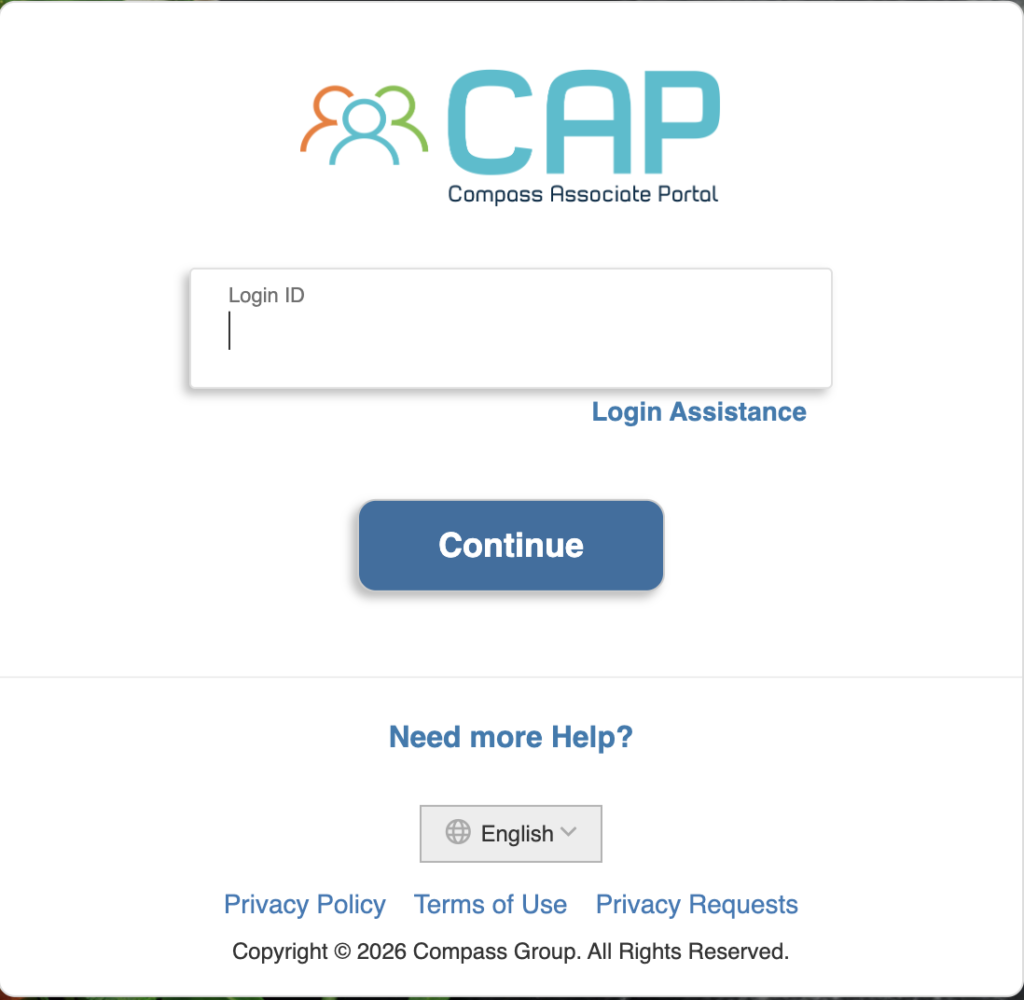
A standard login takes under 60 seconds. Here is the exact sequence including what your username actually looks like and what the URL change to compassmanager.com really means.
How to Register for CAP (New Employee Checklist)
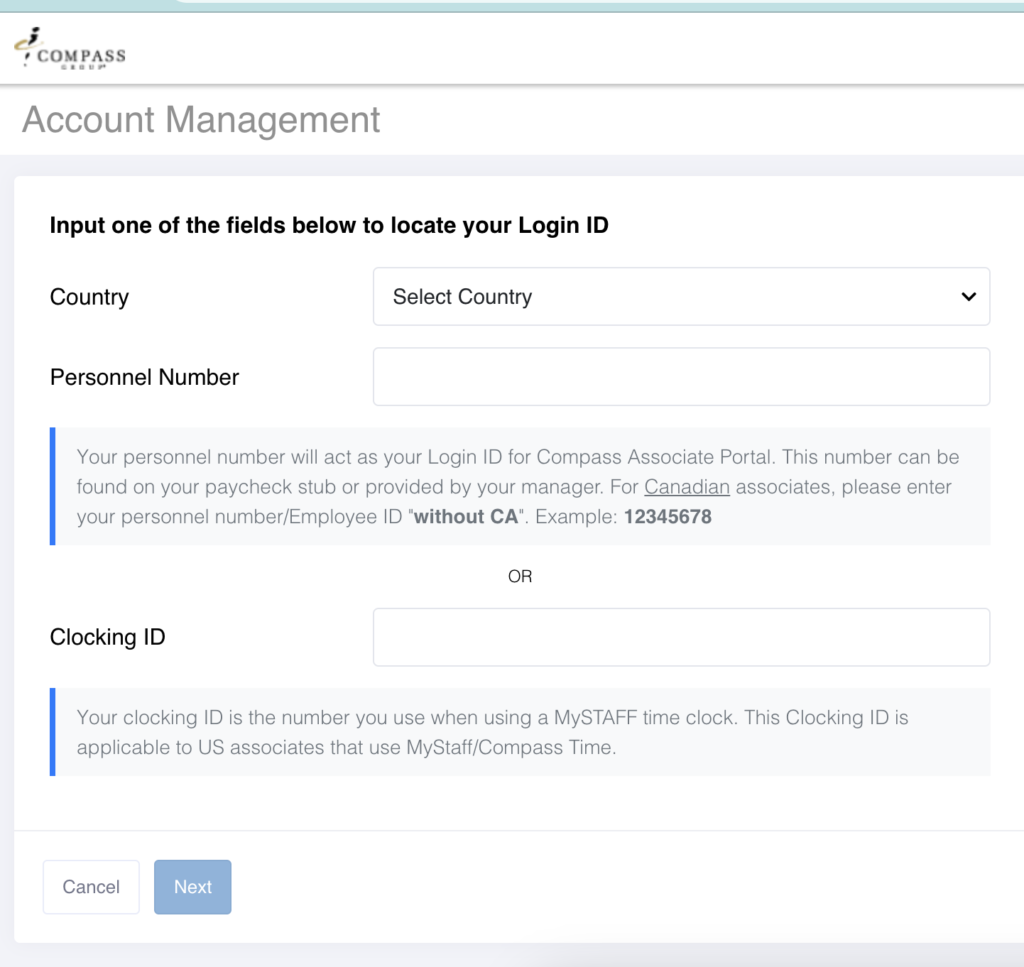
Before you start, gather these 5 items. You cannot complete registration without all of them — and getting one detail wrong can lock the registration flow for 24 hours.
How to View and Download Paystubs
The most-used feature in CAP. Direct deposits often appear in the portal a day or two before the money actually hits your bank account — you can preview your pay early.
How to Download Your W-2 from CAP
W-2 forms are available in CAP by January 31 each year. You do not need to wait for the paper copy in the mail — download and file as soon as the digital version posts.
Managing Your Profile, Benefits & Direct Deposit
Outdated contact info is the number one reason employees miss payroll notifications, benefit confirmations, and password reset emails. Update it the day anything changes.
Fast Password Reset When You’re Locked Out
Three reset paths depending on your situation. Use the correct one to avoid wasting time and triggering further lockouts.
🔑 Path A
Know your security question answer → click Forgot Password, answer the question, follow the email link.
📧 Path B
Have access to your registered personal email → click Login Assistance, select email reset, check inbox.
📞 Path C
Forgot both → use the Reset Account link OR call HR Helpdesk: 1-877-311-4747.
Real Problems Employees Hit — And Exact Fixes
These are the most common issues, sorted by frequency. Check here before calling HR — most fix in under 60 seconds.
12 Insider Tips Most Compass Associates Never Hear
These are the small details that save you hours, prevent missed pay, and keep you out of HR’s queue. Stuff most guides skip — and stuff your manager probably never told you.
Direct deposit posts in CAP before it hits your bank
Compass uploads paystubs to CAP 1 to 2 days before your bank credits the deposit. If you’re tracking expected income for a bill or rent payment, log into CAP late Wednesday or Thursday for a Friday payday — the dollar amount is usually already locked in.
Your first paycheck is delayed by one full pay cycle
If you started this Monday, you do NOT get paid this Friday. Compass payroll runs on a 1-cycle lag. Hours worked in week 1 are processed in week 2 and paid in week 3. New hires panic about a “missing paycheck” every week — this is normal, not a bug.
Personnel Number vs Network ID — how to tell which you have
Look at the top-right of any paystub. A 6-digit number = Personnel Number (most hourly staff). An 8-digit number starting with 9 = Network ID (some salaried staff). If your manager addresses you by an 8-digit ID in emails, you have a Network ID and need the email format login.
Levy, Chartwells, Bon Appétit — your W-2 won’t say that
Your branded uniform doesn’t match your W-2. All Compass sub-brands issue tax forms under “Compass Group USA, Inc.” or a specific Compass legal entity. File taxes with the employer name shown on the W-2 — not the brand on your nametag. This trips up new tax filers every January.
Wait exactly 2 minutes after a password reset
The 2 to 3-minute wait after a password reset is not a polite suggestion — it’s a hard SSO sync window. Compass syncs your new password across CAP, ESS Mobility, OMS, and PeopleHub. Logging in earlier triggers a “credentials not yet propagated” error that looks identical to a wrong password and panics most users into trying again, which then triggers a lockout.
Download everything in your first week of separation
If you leave Compass, download all paystubs and W-2s in week 1, not week 4. Standard portal access typically remains usable for several weeks after separation, but specific features can deactivate without warning. Save the PDFs to cloud storage (Google Drive, iCloud, Dropbox) — you’ll need them for unemployment claims, future tax filings, and apartment applications.
The HR Helpdesk has a best-call window
Hold times spike Monday mornings (everyone calling about weekend issues), the Friday before payday (paycheck questions), and the last week of January (W-2 chaos). The shortest hold times are typically Tuesday to Thursday between 10am and 2pm Eastern Time. Skip Mondays unless you have to call.
Multi-state event staff: you may owe taxes in multiple states
If you work events for Levy or Restaurant Associates across state lines (e.g., a baseball stadium in PA and a concert venue in NJ), your W-2 will show separate state wage lines. You may need to file non-resident state tax returns. Track which state each event was in — your paystub state code shows it.
Direct deposit transition rule — don’t close the old account too soon
When you change banks in CAP, the change takes 1 to 2 pay cycles to fully activate. During the transition, the old account may still receive partial deposits. Keep it open until you confirm at least one full deposit has hit the new account. Closing too soon means a check by mail (slow) or a returned-payment fee.
Rehired within 18 months? Try old credentials first
Returning seasonal and rehired employees usually keep the same Personnel Number and CAP account for up to about 18 months after separation. Try logging in with your original credentials before re-registering. If it fails, call HR — reactivating an old account is faster than creating a new one and avoids duplicate records that confuse W-2 mailing.
W-2 Box 12 codes — what they actually mean
Most associates ignore Box 12 and shouldn’t. Code DD = total cost of employer-provided health coverage (informational, not taxable). Code D = pre-tax 401(k) contributions. Code W = HSA contributions. If you contributed to a 401(k), Code D shows you the exact amount you put in pre-tax — useful for retirement planning and confirming HR matched the right contribution percentage.
Fix the dashboard freeze without clearing all cookies
If CAP gets stuck after login (white screen, infinite spinner), the cause is almost always stale Compass cookies. Don’t clear ALL cookies (you’ll lose every other login). Open your browser’s site-data settings, search compassassociate.com and compassmanager.com, and delete only those entries. Close the browser fully, reopen, and log back in. Fixes it 90% of the time.
Compass Group USA Headquarters & Mailing Address
If you need to send a paper document to corporate (returned W-2 corrections, retiree benefit letters, address-change disputes), this is the verified mailing address. The HR Helpdesk handles most issues by phone, but some processes still require written correspondence.
Compass Group USA, Inc. — Corporate HQ
2400 Yorkmont Rd, Charlotte, NC 28217 · (704) 328-4000
Security Tips Most Employees Skip
CAP holds your pay data, partial SSN, and bank routing information. Protect it like your bank app — because functionally, it is one.
✅ Always Do These
- Log out on any shared or public computer
- Use a unique password not used on any other site
- Keep your registered personal email accessible and current
- Bookmark the official URL — only use that link
- Update security question answers periodically
🚫 Never Do These
- Share login credentials with coworkers or managers
- Save passwords on public or shared devices
- Log in via links from texts or social media
- Use Compass credentials on third-party “helper” websites
- Ignore security question setup during registration
Frequently Asked Questions
The questions HR and the helpdesk receive most — answered clearly and completely so you don’t have to call.